How to block X (Twitter) on iPhone and x.com
Short answer
To block X (Twitter) on iPhone for free, set a Time Allowance for the category that holds X in Settings > Screen Time > Time Allowances (called App Limits in iOS 26), then add x.com and twitter.com to Screen Time's Never Allow list so the website does not undo it. X has no daily time limit of its own, so if you keep tapping Ignore Limit, schedule X to rest at the hours you slip, like 7 AM to 9 AM, with an app blocker such as Calma.
We make Calma, one of the two options below. The Screen Time steps work without it.
 Free trial · Data stays on your iPhone

Option 1 · Built in
How do I block X with Screen Time?
- Find the category X is in
Go to Settings > Screen Time > Time Allowances and tap Manage Categories. The App Store lists X under News first (Social Networking second), so a Social Media allowance may not cover it. Tap a category to see its apps, or tap the add button to create one.
- Set a small daily amount
Back under Time Allowances, tap that category and drag the slider, for example to 20 minutes. X shares those minutes with every other app in the same category.
- Add a passcode
In Settings > Screen Time, tap Passcode & Management, then Lock Screen Time Settings, and enter a four-digit code. The passcode locks your Screen Time settings, so the limit can't be changed or turned off without it. Apple notes that, by default, Screen Time limits can be ignored once reached.
- Test x.com
Apple says a Time Allowance also covers an app's website when the app declares one. Once the allowance runs out, open x.com in Safari. If it still loads, block the site too (see below).
Can you block X in Safari too?
Yes, with Screen Time. Calma blocks apps, not websites. On iOS 26, go to Settings > Screen Time > Content & Privacy Restrictions > App Store, Media, Web, & Games > Web Content, choose Limit Adult Websites, and add x.com and twitter.com under Never Allow. Otherwise X stays one browser tab away. On iOS 27, Apple says a Time Allowance also covers a website the app declares, so open the site in Safari once your time runs out to check.Option 2 · On a schedule
How do I block X only at night, or during work?
Block X every day from 7 AM to 9 AM.
- Open the Moments tab, tap New moment
Or tap the Night Peace suggestion to start from a ready-made 10 PM to 7 AM block.
- Tap the words
Choose X from Apple's picker, set the days and times.
- Tap Protect this moment
When it starts, X rests. Open it and you'll see
X is resting.
with one button: Back to calm.
Free trial · Data stays on your iPhoneScreen Time or Calma for X?
| Question | Screen Time: Time Allowance or schedule |  Calma scheduled block |
|---|---|---|
| Best when | You want a daily time budget | A specific time is the problem: bed, work, dinner |
| What you see | A limit screen that, by default, you can ignore | "X is resting." and one button, Back to calm |
| Cost | Free | Free to download. Calma Pro unlocks blocking, with a 3-day free trial |
When should X be blocked?
Checking X before getting up
Block X every day from 7 AM to 9 AM.
One refresh between tasks
Block X on weekdays from 9 AM to 5 PM.
Just checking the news
Allow X 5 opens a day.
Where can X still reach you after you block the app?
Blocking the X app leaves x.com in Safari, twitter.com links, and notifications. X is both an app and a website, and each way in needs its own fix.
| Way in | What closes it | What doesn’t |
|---|---|---|
| The X app | A Time Allowance or Screen Time Schedule, or a Calma rule | Deleting it, since your account is still there when you reinstall |
| x.com in Safari | Screen Time’s Never Allow list | Blocking only the app |
| twitter.com links | The same list: add twitter.com too, it redirects to x.com | Blocking the app |
| t.co links | Never Allow, if you want X links to stop opening | Blocking the app |
| Notifications | X’s Push notifications settings, or Settings > Notifications > X on your iPhone | Muted words, for accounts whose posts you opted into |
The website row is the one people miss. Someone sends you a post, you tap it, and you are reading X in Safari with the app still blocked. If X is where your time goes, block the app and the two domains. If you rely on X links for work, block only the app at your worst hours and leave the browser open.
Why doesn’t a Social Media limit block X?
A Social Media limit can miss X because the App Store lists X under News first, and on iOS 27 a Time Allowance belongs to a whole category, not one app. The allowance that stops Instagram can leave X open.
Before you set any time, tap through Manage Categories until you find the one listing X. Every app in it spends the same minutes, so a news app you read at lunch can use up X’s time. Reddit has the same issue, for the same reason, and Snapchat can slip past a Social Media limit too.
On iOS 26, App Limits can limit X alone: tap Add Limit, tap a category’s name, select X, tap Next and set the time. Apple notes that, by default, Screen Time limits can be ignored once they are reached. In Calma, on either version, you pick X itself from Apple’s app picker, so there is no category to figure out.
Which way to block X fits you?
The right tool depends on whether you want a time budget, set hours, or just a quieter feed. Here is an honest summary, including when Calma is not the pick.
| Option | Best for | Not for | Cost |
|---|---|---|---|
| Screen Time Time Allowance | A daily budget for X and similar apps | People who tap past the limit, or who want X alone on iOS 27 | Free |
| Screen Time Schedule (Downtime on iOS 26) | Closing X at fixed hours | People who don’t want to manage a passcode | Free |
| X’s own settings | A calmer feed: Following tab, autoplay off, muted words | Limiting time. X has no time limit | Free |
| Calma | X resting at set hours, a daily limit, or a few opens a day, with a calm block screen | iPad or Mac, or a lock you cannot undo | Free to download, Calma Pro with a 3-day free trial |
| A hard blocker | A barrier you cannot switch off | People who want to stay in charge of their own rules | Varies |
If you want a lock you cannot undo, a hard blocker fits better than Calma. See Calma vs Brick and the Opal alternatives page, or the full best app blocker for iPhone list. We make Calma, so weigh that too.
How do you stop checking X first thing in the morning?
To stop checking X first thing in the morning, block it for the first hours of the day instead of rationing it. The morning check is rarely one post: overnight news, replies and trends stack up, and a quick look can turn into the first hour.
In Calma, start from Slow Morning, which rests the apps you pick every day from 7 AM to 9 AM. Tap the times in the rule to change them. During those hours, opening X shows “X is resting.” and a single button, Back to calm. There is no “open anyway” on that screen. If you truly need X at 8 AM, you open Calma and switch the routine off.
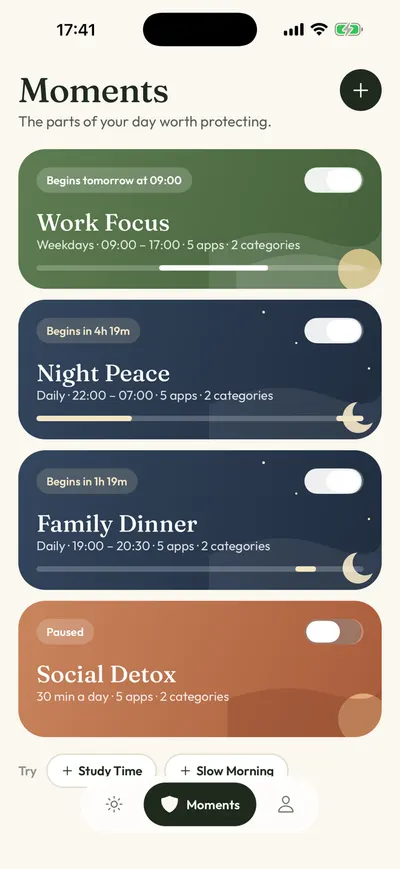
For work hours, Work Focus does the same Monday to Friday from 9 AM to 5 PM. On iOS 27, Screen Time can do a version of this: in Screen Time Schedule, add a 7 AM to 9 AM window and leave X’s category out. Apple says this needs iOS 27 or later on all your Apple devices. On iOS 26, Downtime does the same job.
What if you only open X to check the news?
If you only open X to check the news, limit opens, not minutes. A quick look at what happened is fine. An open limit keeps that and stops the scroll afterward.
In Calma, “Allow X 5 opens a day” keeps X resting between uses. While you have opens left, the block screen shows Open app, and each open unlocks X for 15 minutes. When the opens are used up, the button changes to Back to calm.
Pair it with X’s own settings so each open lands on less: switch Home to Following, set Video autoplay to Never, and mute the words or hashtags that pull you into long threads.
What is Calma?
Calma is a gentle app blocker for iPhone, made by AASN Tech, a studio in São Paulo, Brazil. Calma is built on Apple’s Screen Time APIs, so iOS applies the blocks and they keep working when Calma is closed. Calma has no account and no ads, and your rules stay on your iPhone. Calma is free to download, and blocking needs Calma Pro, with a 3-day free trial. Calma is iPhone only, with no iPad, Mac or Android version. On the App Store, Calma is listed as App Blocker & Detox: Calma, and the interface is available in 12 languages.
Where to go next
If the morning check is the problem, how to protect your morning from feeds goes further, and what doomscrolling is and why a pause helps explains the pull of an endless feed. For work, see the first hour of work guide, and why you keep overriding App Limits looks at the Ignore Limit habit. To rest several apps at once, start with how to block distracting apps without deleting them, read how Calma works as an app blocker, or compare Apple’s free tools in Calma vs Screen Time. The same steps for other apps: how to block Instagram, how to block TikTok, how to block Facebook without losing Messenger and limiting YouTube to a few opens a day.
Does X have its own time limits?
- Video autoplay
X: Settings and privacy > Accessibility, display, and languages > Data usage > Video autoplay. Choose On cellular or Wi-Fi, Only on Wi-Fi, or Never. With Never, videos in your timeline, Moments and Explore only play when you tap them. The app and x.com keep separate autoplay settings, so change both if you use both.
- Following timeline
X: Home, then swipe or tap from For you to Following. Following shows posts only from accounts you follow, without For you's recommendations. X says the app reopens on whichever tab you had open last.
- Push notifications
X: profile icon > Settings and privacy > Notifications > Preferences > Push notifications. Turn off the types you don't need, such as Recommendations, Highlights, News, Moments or Spaces. Fewer pings means fewer reasons to open X. It does not limit time in the app.
- Muted words
X: Notifications tab > gear icon > Muted > Muted words > Add. Mute a word, phrase, username, emoji or hashtag in your Home timeline, notifications or both, for Forever, 24 hours, 7 days or 30 days. X notes muted posts still show up in search.
Why do X limits get ignored?
x.com works in Safari, and twitter.com leads there. We opened twitter.com on October 5, 2026 and it redirected to x.com. Blocking the X app leaves both addresses open unless they are on the Never Allow list.
t.co is X's link shortener, not X itself. X Help says every link posted on X, including in Direct Messages, becomes a t.co link. Adding t.co to Never Allow should stop those links from opening in Safari, including links to other sites (we have not tested it on a device), but it does not block X. Add it only if you want X links to stop working too.
Muted words don't apply to search. X Help says muting only covers your notifications and Home timeline, so posts with a word you muted still show up when you search.
Notifications can come from accounts you opted into. If you turned on post notifications for an account, X says muted words do not stop those alerts. Tap the highlighted bell on that profile and choose None, or switch X off in Settings > Notifications on your iPhone.
Autoplay is set per place. Turning autoplay off in the X app does not change it on x.com, and the reverse.
FAQ
Does X (Twitter) have a built-in time limit?
No. As of October 5, 2026, we found no daily time limit or break reminder documented in the X Help Center. X's own "take a break" page suggests tailoring the app instead: Lists, turning off autoplay, and muting accounts or words.
Can I still use X in Safari after blocking the app?
Yes, unless you block the website too. Apple documents one way to block a website: Screen Time's Never Allow list. On iOS 26, go to Settings > Screen Time > Content & Privacy Restrictions > App Store, Media, Web & Games > Web Content, choose Limit Adult Websites, then add x.com and twitter.com under Never Allow. On iOS 27, a Time Allowance can also cover x.com if X declares it as its website, so test it.
How do I block X in the morning or at night?
Schedule it. On iOS 27, open Settings > Screen Time > Screen Time Schedule, turn on Schedule, add a time window like 7 AM to 9 AM and leave X's category out of it. On iOS 26, use Downtime and turn on Block at Downtime (it needs a Screen Time passcode). In Calma, Slow Morning covers 7 AM to 9 AM and Night Peace covers 10 PM to 7 AM.
Can I block the For you feed but keep X Direct Messages?
Not with Screen Time or Calma, which treat X as one app. Inside X, switching Home to Following removes For you's recommendations, and X reopens on the tab you used last.
How much does Calma cost?
Calma is free to download, and blocking needs a Calma Pro subscription with a 3-day free trial for eligible new users. As of October 5, 2026, the US App Store lists Calma Pro at $3.99 a week, $9.99 a month or $39.99 a year. Screen Time is free and built into every iPhone.
Steps checked against Apple and X documentation for iOS 27, Oct 5, 2026. Sources: Apple Support: Set Screen Time Schedules and Time Allowances (iOS 27), Apple Support: Set schedules with Screen Time on iPhone (iOS 26), Apple Support: Block apps, app downloads, websites, and purchases (iOS 26), Apple Support: Create, change, or remove a Screen Time passcode, X Help Center: How to take an X break on X, X Help Center: How to share and watch videos on X (autoplay), X Help Center: About your For you timeline on X, X Help Center: About notifications on mobile devices, X Help Center: How to use advanced muting options, X Help Center: About X's link service (t.co), X on the App Store (version 12.31.1, News), Calma on the App Store (prices and trial)
Also: Block FacebookBlock InstagramBlock RedditBlock SnapchatBlock TikTokBlock YouTube