How to block TikTok on iPhone (and tiktok.com)
Short answer
To block TikTok on iPhone with the built-in Screen Time, set a Time Allowance for its category in Settings > Screen Time > Time Allowances (called App Limits in iOS 26), then block tiktok.com, because TikTok also runs in a web browser. If you want TikTok closed at set hours instead, like 10 PM to 7 AM, schedule it with an app blocker such as Calma.
We make Calma, one of the two options below. The Screen Time steps work without it.
 Free trial · Data stays on your iPhone
Option 1 · Built in
How do I block TikTok with Screen Time?
- Turn on Screen Time
In Settings, tap Screen Time, then Time Allowances. If you see Turn On App & Website Activity, tap it first.
- Add TikTok's category
Tap Manage Categories, tap the add button, and pick the category that lists TikTok. The App Store files TikTok under Entertainment; tap the category to see its apps and confirm.
- Choose the daily time
Back in Time Allowances, tap the category and drag the slider, for example to 30 minutes. Every app in that category shares this time, not only TikTok.
- Lock the settings
Go to Settings > Screen Time > Manage Screen Time > Lock Screen Time Settings and set a four-digit passcode. If you would just type it yourself, let a friend choose it.
Can you block TikTok in Safari too?
Yes, with Screen Time. Calma blocks apps, not websites. On iOS 26, go to Settings > Screen Time > Content & Privacy Restrictions > App Store, Media, Web & Games > Web Content, choose Limit Adult Websites, and add tiktok.com under Never Allow. On iOS 27, look for the same list under Content & Privacy Restrictions. Otherwise TikTok stays one browser tab away.Option 2 · On a schedule
How do I block TikTok only at night, or during work?
Block TikTok every day from 10 PM to 7 AM.
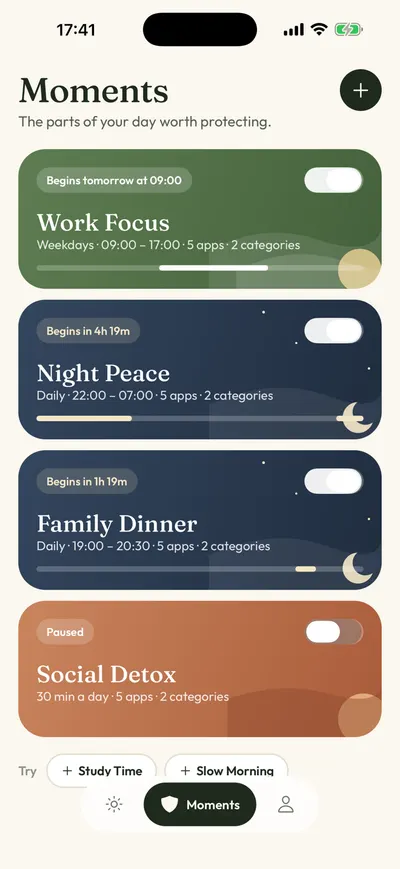
- Open the Moments tab, tap New moment
Or tap the Night Peace suggestion to start from a ready-made 10 PM to 7 AM block.
- Tap the words
Choose TikTok from Apple's picker, set the days and times.
- Tap Protect this moment
When it starts, TikTok rests. Open it and you'll see
TikTok is resting.
with one button: Back to calm.
Free trial · Data stays on your iPhoneScreen Time or Calma for TikTok?
| Question | Screen Time: Time Allowance or schedule |  Calma scheduled block Calma scheduled block |
|---|---|---|
| Best when | You want a daily time budget | A specific time is the problem: bed, work, dinner |
| What you see | A limit screen you can dismiss, unless you set a Screen Time passcode | "TikTok is resting." and one button, Back to calm |
| Cost | Free | Free to download. Calma Pro unlocks blocking, with a 3-day free trial |
When should TikTok be blocked?
One more video at midnight
Block TikTok every day from 10 PM to 7 AM.
Before you get out of bed
Block TikTok every day from 7 AM to 9 AM.
A set amount, then done
Allow TikTok 30 min a day.
How do you block TikTok at night on iOS 27?
Use a Screen Time Schedule, not only a Time Allowance. A Time Allowance counts minutes; a schedule says when a category is available at all. Apple’s iOS 27 steps:
- In Settings > Screen Time, tap Screen Time Schedule, then switch Schedule on.
- Tap Add Schedule and choose the days.
- Tap the time window and set it to 10 PM to 7 AM. Tapping categories picks which ones stay available in that window, so leave TikTok’s category out.
- Check Always Allowed so the apps and people you need still get through.
Apple notes that Screen Time Schedules need iOS 27 or later on all your Apple devices. On iOS 26, the same job is done by Downtime.
In Calma, the same night is one rule: Night Peace, every day from 10 PM to 7 AM. TikTok stays available during the day and shows “TikTok is resting.” at night, with one button, Back to calm. There is no passcode to type on that screen. If you really need TikTok before morning, you open Calma and switch Night Peace off.
How many times a day do you open TikTok?
TikTok will tell you. Its screen time dashboard has a TikTok opened count for each day of the week, next to time spent. That number is more useful than it looks, because it tells you which kind of limit fits.
- Lots of short opens (checking between tasks) suit an open limit. In Calma, “Allow TikTok 5 opens a day” shows Open app on the block screen while you have opens left, and each open lasts 15 minutes.
- A few long sessions (one open that turns into an hour) suit a daily limit or a schedule. Calma’s Social Detox gives 30 minutes a day, then TikTok rests until midnight.
- Long sessions at one time of day, like in bed, suit a scheduled block for that window.
Look at a normal week before you choose. A weekday and a Sunday often look very different.
Why doesn’t TikTok’s own limit stop you?
Because it is designed to let you continue. TikTok’s help center says that when you reach your daily screen time, you can close TikTok or “enter the on-screen passcode to return to it.” The code is right there. Screen time breaks and sleep reminders work the same way: OK, Snooze or Delay, and the video carries on.
These tools are still worth turning on. Sleep reminders mute TikTok’s push notifications during your sleep hours, which helps even when you are not scrolling. Just don’t count on them as a block. If late-night TikTok is really a doomscrolling loop, what doomscrolling is and why a pause helps explains why feeds are so hard to put down.
For a closer look at the habit of tapping past limits, read why you keep overriding App Limits. If TikTok is one of several apps you want to rest, start with how to block distracting apps without deleting them. The same approach for Instagram is in how to block Instagram on iPhone, and the full picture of Apple’s free tools is in Calma vs Screen Time.
Does TikTok have its own time limits?
- Daily screen time
TikTok: Profile > Menu > Settings and privacy > Screen time > Daily screen time. You pick a daily limit, or a different one for each day. When you reach it, TikTok says you can close the app or enter a passcode shown on the screen to keep watching, and you can switch the limit off whenever you like.
- Screen time breaks
TikTok: Settings and privacy > Screen time > Screen time breaks. A reminder after a stretch of nonstop watching. **OK** hides it until your next visit and **Snooze** brings it back in 10 minutes.
- Sleep reminders
TikTok: Settings and privacy > Screen time > Sleep reminders. At the time you set, a pop-up suggests logging off and TikTok mutes push notifications for your sleep hours. **Delay** snoozes it for 10 minutes.
- Screen time dashboard
TikTok: Settings and privacy > Screen time, then scroll to the dashboard. Daily time spent for the current week, across the app and the website, plus a **TikTok opened** count for each day. You can look back three weeks.
Why do TikTok limits get ignored?
tiktok.com works in Safari. TikTok's help pages give web steps for every screen time setting, so the full app has a browser twin. A Calma block, or a Screen Time block without a website rule, leaves tiktok.com open.
The daily screen time passcode is printed on the limit screen. It is a pause to think, not a lock.
A category allowance is shared. On iOS 27, TikTok's Time Allowance is the category's allowance, so time in any other app in that category uses up TikTok's minutes too, and the reverse.
TikTok Shop and LIVE are part of the same app. The App Store lists it as "TikTok - Videos, Shop & LIVE", so blocking TikTok also closes TikTok Shop. Plan for that if you sell or buy there.
Links from friends point to tiktok.com. Short links like vm.tiktok.com redirect to tiktok.com (we checked on September 24, 2026), which is one more reason to block the domain as well as the app.
Sleep reminders only mute pushes during your sleep hours. During the day, TikTok notifications can still pull you back. Turn them off in iPhone Settings > Notifications > TikTok or hold them with a Focus.
FAQ
Is TikTok's own daily limit enough?
It works as a reminder. When you hit it, TikTok lets you close the app or type a passcode it shows you, so it stops nobody who wants to keep going. It helps most if you mainly lose track of time.
Can I block the For You feed but keep TikTok messages?
No. Screen Time and Calma both treat TikTok as one app, so the feed, messages, LIVE and Shop go together. TikTok's Screen time breaks are the closest built-in way to cut long feed sessions short.
How do I block TikTok at night on iOS 27?
In Screen Time, open Screen Time Schedule, turn on Schedule, add a time window like 10 PM to 7 AM and leave TikTok's category out of it. In Calma, turn on Night Peace. TikTok's Sleep reminders add a nudge and mute its notifications, but they don't close the app.
Can I still watch TikTok in Safari after blocking the app?
Yes, unless you block tiktok.com too. Calma blocks apps only. Apple documents website blocking with Never Allow in Screen Time's Content & Privacy Restrictions, and on iOS 27 a Time Allowance also covers an app's own website when the app declares one.
Steps checked against Apple and TikTok documentation for iOS 27, Sep 24, 2026. Sources: Apple Support: Set Screen Time Schedules and Time Allowances (iOS 27), Apple Support: Set up Screen Time for yourself (iOS 27), Apple Support: Create, change, or remove a Screen Time passcode, Apple Support: Block apps, app downloads, websites, and purchases (iOS 26), TikTok Help Center: Screen time, TikTok on the App Store (version 47.0.0, Entertainment)