How to block Facebook on iPhone (and set a limit)
Short answer
To block Facebook on iPhone for free, set a Time Allowance for the category that holds Facebook in Settings > Screen Time > Time Allowances (called App Limits in iOS 26), then add facebook.com to Screen Time's Never Allow list so the website does not undo it. Meta has documented time reminders for Facebook, not a lockout, so if you keep tapping Ignore Limit, schedule Facebook to rest at the hours you slip, like 10 PM to 7 AM, with an app blocker such as Calma.
We make Calma, one of the two options below. The Screen Time steps work without it.
 Free trial · Data stays on your iPhone

Option 1 · Built in
How do I block Facebook with Screen Time?
- Find the category Facebook is in
Go to Settings > Screen Time > Time Allowances and tap Manage Categories. The App Store lists Facebook under Social Networking, and Messenger there too. Tap a category to see which apps it holds, or tap the add button to create one.
- Set a daily amount
Back under Time Allowances, tap that category and drag the slider, for example to 30 minutes. Every app in the category shares those minutes.
- Keep Messenger open if you need it
To keep chatting, go to Settings > Screen Time > Always Allowed, tap Add Apps and add Messenger.
- Add a passcode
In Settings > Screen Time, tap Passcode & Management, then Lock Screen Time Settings, and enter a four-digit code.
- Test facebook.com
Apple says a Time Allowance also covers an app's website when the app declares one. When the time runs out, open facebook.com in Safari. If it loads, block the site too (see below).
Can you block Facebook in Safari too?
Yes, with Screen Time. Calma blocks apps, not websites. On iOS 26, go to Settings > Screen Time > Content & Privacy Restrictions > App Store, Media, Web, & Games > Web Content, choose Limit Adult Websites, and add facebook.com and m.facebook.com under Never Allow. Otherwise Facebook stays one browser tab away. On iOS 27, Apple says a Time Allowance also covers a website the app declares, so open the site in Safari once your time runs out to check.Option 2 · On a schedule
How do I block Facebook only at night, or during work?
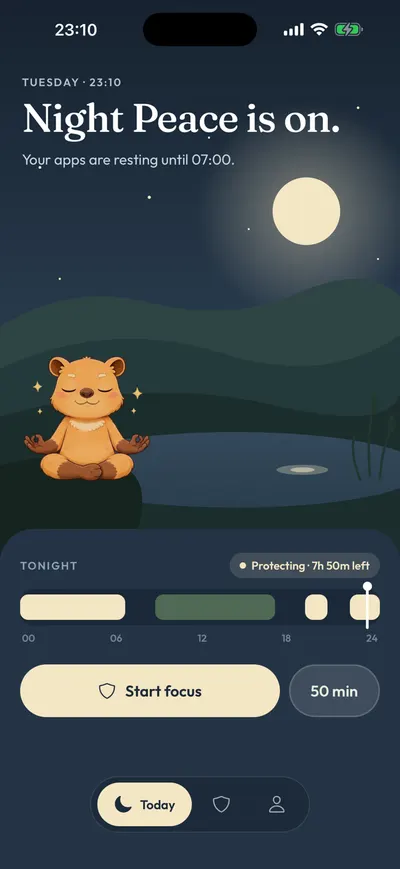
Block Facebook every day from 10 PM to 7 AM.
- Open the Moments tab, tap New moment
Or tap the Night Peace suggestion to start from a ready-made 10 PM to 7 AM block.
- Tap the words
Choose Facebook from Apple's picker, set the days and times.
- Tap Protect this moment
When it starts, Facebook rests. Open it and you'll see
Facebook is resting.
with one button: Back to calm.
Free trial · Data stays on your iPhoneScreen Time or Calma for Facebook?
| Question | Screen Time: Time Allowance or schedule |  Calma scheduled block |
|---|---|---|
| Best when | You want a daily time budget | A specific time is the problem: bed, work, dinner |
| What you see | A limit screen that, by default, you can ignore | "Facebook is resting." and one button, Back to calm |
| Cost | Free | Free to download. Calma Pro unlocks blocking, with a 3-day free trial |
When should Facebook be blocked?
One more scroll in bed
Block Facebook every day from 10 PM to 7 AM.
A set amount, then done
Allow Facebook 30 minutes a day.
Groups and Marketplace, not the Feed
Allow Facebook 3 opens a day.
Where can Facebook still reach you after you block the app?
Blocking the Facebook app leaves the website, short links, Messenger and notifications open. Each way in needs its own fix.
| Way in | What closes it | What doesn’t |
|---|---|---|
| The Facebook app | A Time Allowance or Screen Time Schedule, or a Calma rule | Deleting it, since your account is still there when you reinstall |
| facebook.com in Safari | Screen Time’s Never Allow list, with facebook.com and m.facebook.com | Blocking only the app |
| fb.com and fb.me links | The same list, with fb.com added. Both redirected to www.facebook.com when we checked | Blocking the app |
| Messenger | Its own block, or a category allowance that includes it | Picking Facebook alone, in most cases |
| Notifications | Facebook’s Notifications settings, or Settings > Notifications > Facebook on your iPhone | The Feeds tab, which changes the order of posts, not your alerts |
The website row is the one people miss: facebook.com works in Safari on its own, so blocking only the app leaves the Feed one tab away.
Can a Social Media limit also stop Messenger?
On iOS 27, a Time Allowance belongs to a whole category, not one app, and the App Store lists both Facebook and Messenger under Social Networking. If both sit in the same Screen Time category on your iPhone, the allowance that stops Facebook stops your chats at the same moment.
Tap through Manage Categories first. Every app in a category spends the same minutes, so a look at another social app at lunch can use up Facebook’s time (if that is Instagram, Instagram has its own page). To keep Messenger, add it to Always Allowed, which Apple says stays available whatever schedules or allowances you set.
On iOS 26, App Limits can limit Facebook alone: tap Add Limit, tap a category’s name, select Facebook, tap Next and set the time. Apple notes that, by default, Screen Time limits can be ignored once they are reached. In Calma, on either version, you pick Facebook itself from Apple’s app picker rather than a category. Some Screen Time based blockers have caught Messenger along with Facebook, so open Messenger once after you set any block.
Are Facebook’s own time tools enough?
For some people a nudge is enough. Your time on Facebook shows how much time you spend there, and Meta has also described a Daily Time Reminder and Quiet mode, which mutes most push notifications, but the current Help Center does not mention either, so they may not be in your app. The Feeds tab changes the order of posts, not your time, and Facebook brings the ranked Feed back when you reopen the app.
None of these closes Facebook at a set hour. If you keep swiping a reminder away at 11 PM, the problem is the hour, not the amount.
Which way to limit Facebook fits you?
It depends on whether you want a time budget, set hours, or fewer pings. Here is an honest summary, including when Calma is not the pick.
| Option | Best for | Not for | Cost |
|---|---|---|---|
| Screen Time Time Allowance | A daily budget for Facebook and similar apps | People who tap past the limit, or who want Facebook alone on iOS 27 | Free |
| Screen Time Schedule (Downtime on iOS 26) | Closing Facebook at fixed hours | People who don’t want to manage a passcode | Free |
| Facebook’s own tools | A reminder, quieter notifications, a calmer Feeds view | Stopping you at a set time. They nudge, they don’t block | Free |
| Calma | Facebook resting at set hours, a daily limit, or a few opens a day, with a calm block screen | iPad or Mac, or a lock you cannot undo | Free to download, Calma Pro with a 3-day free trial |
| A hard blocker | A barrier you cannot switch off | People who want to stay in charge of their own rules | Varies |
If you want a lock you cannot undo, a hard blocker fits better than Calma. See Calma vs Brick and the Opal alternatives page, or the full best app blocker for iPhone list. We make Calma, so weigh that too.
How do you stop scrolling Facebook in bed?
To stop scrolling Facebook in bed, block it for the night instead of rationing it. A daily limit can be spent at any hour, and if it runs out late, Ignore Limit lets you keep going. Reels and group posts keep going long after you meant to stop, the setup behind doomscrolling.
In Calma, start from Night Peace, which rests the apps you pick every day from 10 PM to 7 AM. Tap the times in the rule to change them. During those hours, opening Facebook shows “Facebook is resting.” and a single button, Back to calm. There is no “open anyway” on that screen. If you truly need Facebook at midnight, you open Calma and switch the routine off.
On iOS 27, Screen Time can do a version of this: in Screen Time Schedule, add a 10 PM to 7 AM time window and leave Facebook’s category out. Apple says this needs iOS 27 or later on all your Apple devices. On iOS 26, use Downtime with Block at Downtime on (it needs a Screen Time passcode).
What if you only open Facebook for groups or Marketplace?
If you only open Facebook for a group, an event or a Marketplace listing, limit opens, not minutes. An open limit keeps the quick check and stops the Feed from taking the rest of the hour.
In Calma, “Allow Facebook 3 opens a day” keeps Facebook resting between uses. While you have opens left, the block screen shows Open app, and each open unlocks Facebook for 15 minutes. When the opens are used up, the button changes to Back to calm.
For a time budget instead, Social Detox gives Facebook 30 minutes a day, and when the time runs out, Facebook rests until midnight.
What is Calma?
Calma is a gentle app blocker for iPhone, made by AASN Tech, a studio in São Paulo, Brazil. Calma is built on Apple’s Screen Time APIs, so iOS applies the blocks and they keep working when Calma is closed. Calma has no account and no ads, and your rules stay on your iPhone. Calma is free to download, and blocking needs Calma Pro, with a 3-day free trial. Calma is iPhone only, with no iPad, Mac or Android version, and it blocks apps, not websites. On the App Store, Calma is listed as App Blocker & Detox: Calma, and the interface is available in 12 languages.
Where to go next
If the evening is the hard part, the evening wind-down guide goes further, and why you keep overriding App Limits looks at the Ignore Limit habit. To rest several apps at once, start with how to block distracting apps without deleting them, read how Calma works as an app blocker, or compare Apple’s free tools in Calma vs Screen Time. The same steps for other apps: how to block Instagram, how to block X (Twitter), how to limit Snapchat on iPhone, how to block Reddit and reddit.com and how to block YouTube or just Shorts.
Does Facebook have its own time limits?
- Your time on Facebook
Facebook: Menu > Settings & privacy > Settings > Preferences > Your time on Facebook. Facebook's Help Center says it shows how much time you spend on Facebook and helps you manage your time, and that it now lives in Settings, below Preferences.
- Daily Time Reminder and Quiet mode
Facebook: Your time on Facebook > Manage your time, as Meta described it in 2021. Meta described a Daily Time Reminder that notifies you after the time you choose, and Quiet mode, which mutes most push notifications on a schedule. Both nudge rather than block. The current Help Center does not mention either, so they may no longer be in your app.
- Notification settings
Facebook: Menu > Settings & privacy > Settings > Notifications (below Preferences). Choose how you get alerts and what triggers them. To stop them all, use your iPhone: Settings > Notifications > Facebook > Allow Notifications.
- Feeds tab
Facebook: tap the Feeds tab. Shows the most recent posts from people, Favorites, Pages and groups you follow, newest first. Facebook says that when you exit and reopen the app, the posts it predicts are most relevant appear at the top of your Feed again.
Why do Facebook limits get ignored?
facebook.com in Safari, plus m.facebook.com and fb.com. When we requested facebook.com with an iPhone browser signature on October 11, 2026, it redirected to m.facebook.com, and fb.com and fb.me redirected to www.facebook.com. That was a network check, not a device test. On iOS 26, go to Settings > Screen Time > Content & Privacy Restrictions > App Store, Media, Web, & Games > Web Content, choose Limit Adult Websites, and add facebook.com, m.facebook.com and fb.com under Never Allow.
Some Screen Time based blockers have caught Messenger along with Facebook. In June 2024, a developer building on Apple's Screen Time tools reported on Apple's Developer Forums that users who picked only Facebook found Messenger blocked too, and an Apple engineer replied that its engineering teams needed to investigate. The thread shows no later update. If you rely on Messenger, open it once after you set any block to check it still works.
Reels are inside Facebook. Since September 2025, Facebook says all videos except Stories and live videos are shared as reels, and they also appear in your Feed. Screen Time and Calma treat Facebook as one app, so there is no way to block only Reels.
FAQ
Can you put a time limit on Facebook on iPhone?
Yes, with Screen Time. On iOS 27, set a Time Allowance for the category that holds Facebook in Settings > Screen Time > Time Allowances. On iOS 26, use App Limits: tap Add Limit, tap the category name, select Facebook, tap Next and set the time. Add a Screen Time passcode so the limit is harder to ignore.
Does Facebook have its own time limit?
Not one that locks you out. Facebook's Help Center says Your time on Facebook, in Settings below Preferences, shows how much time you spend and helps you manage it. Meta has also described a Daily Time Reminder that notifies you after the time you choose, but the current Help Center does not mention it, so check your app.
Can I block Facebook but still use Messenger?
Usually, yes. Messenger is a separate app on the App Store. In Calma or in iOS 26 App Limits, pick Facebook on its own rather than a whole category. On iOS 27, where a Time Allowance covers a whole category, add Messenger to Always Allowed. Some Screen Time based blockers have blocked Messenger along with Facebook, so open Messenger once after setting the block to check it still works.
Can I block only Facebook Reels?
Not with Screen Time or Calma, which block whole apps. Facebook says reels show up in the Reels section and in your Feed, so they come with the app. The Feeds tab shows the newest posts first instead, though Facebook brings its ranked Feed back when you reopen the app.
How much does Calma cost?
Calma is free to download, and blocking needs a Calma Pro subscription with a 3-day free trial for eligible new users. As of October 11, 2026, the US App Store lists Calma Pro at $3.99 a week, $9.99 a month or $39.99 a year. Screen Time is free and built into every iPhone.
Steps checked against Apple and Facebook documentation for iOS 27, Oct 11, 2026. Sources: Apple Support: Set Screen Time Schedules and Time Allowances (iOS 27), Apple Support: Set schedules with Screen Time on iPhone (iOS 26), Apple Support: Block apps, app downloads, websites, and purchases (iOS 26), Apple Support: Create, change, or remove a Screen Time passcode, Facebook Help Center: How to find your Facebook settings (Your time on Facebook, Preferences), Facebook Help Center: Find your Facebook settings, Facebook Help Center: Adjust your mobile push notifications from Facebook, Facebook Help Center: See the most recent posts in your Feeds tab, Facebook Help Center: Explore and watch Facebook reels, Meta Newsroom: New tools to manage your time on Facebook and Instagram (2018), Meta: Time Management Tools on Facebook and Instagram (November 2021), Apple Developer Forums: Apps of the same family being blocked inadvertently (June 2024), Facebook on the App Store (version 582.0.0, Social Networking), Messenger on the App Store (Social Networking), Calma on the App Store (prices and trial)
Also: Block InstagramBlock RedditBlock SnapchatBlock TikTokBlock XBlock YouTube