How to block Instagram on iPhone (without deleting)
Short answer
To block Instagram on iPhone for free, add it to a Time Allowance in Settings > Screen Time > Time Allowances (called App Limits in iOS 26), then block instagram.com in Safari so the web version doesn't undo it. If you keep tapping Ignore Limit, schedule Instagram to rest at the times you slip, like 10 PM to 7 AM, with an app blocker such as Calma.
We make Calma, one of the two options below. The Screen Time steps work without it.
 Free trial · Data stays on your iPhone
Option 1 · Built in
How do I block Instagram with Screen Time?
- Open Time Allowances
Go to Settings > Screen Time > Time Allowances.
- Pick the category
Under Time Allowances, tap the category Instagram is in, such as Social Media. Tap Manage Categories to see which apps a category includes.
- Set the time
Drag the slider to a daily amount like 30 minutes. Apps in the category share that time and your daily total.
- Make it hold
Without a passcode, the limit screen offers Ignore Limit. Set one in Settings > Screen Time > Manage Screen Time > Lock Screen Time Settings. In iOS 26, you also turned on Block at End of Limit for the limit.
Can you block Instagram in Safari too?
Yes, with Screen Time. Calma blocks apps, not websites. On iOS 26, go to Settings > Screen Time > Content & Privacy Restrictions > App Store, Media, Web & Games > Web Content, choose Limit Adult Websites, and add instagram.com under Never Allow. On iOS 27, look for the same list under Content & Privacy Restrictions. Otherwise Instagram stays one browser tab away.Option 2 · On a schedule
How do I block Instagram only at night, or during work?
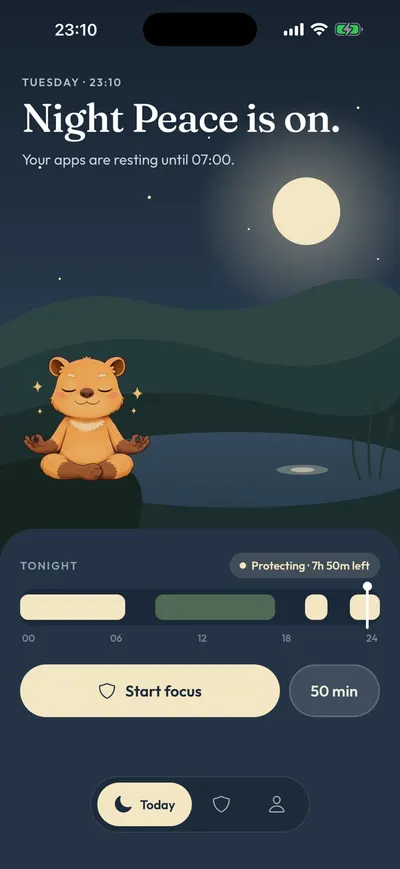
Block Instagram every day from 10 PM to 7 AM.
- Open the Moments tab, tap New moment
Or tap the Night Peace suggestion to start from a ready-made 10 PM to 7 AM block.
- Tap the words
Choose Instagram from Apple's picker, set the days and times.
- Tap Protect this moment
When it starts, Instagram rests. Open it and you'll see
Instagram is resting.
with one button: Back to calm.
Free trial · Data stays on your iPhoneScreen Time or Calma for Instagram?
| Question | Screen Time: Time Allowance or schedule |  Calma scheduled block Calma scheduled block |
|---|---|---|
| Best when | You want a daily time budget | A specific time is the problem: bed, work, dinner |
| What you see | A limit screen you can dismiss, unless you set a Screen Time passcode | "Instagram is resting." and one button, Back to calm |
| Cost | Free | Free to download. Calma Pro unlocks blocking, with a 3-day free trial |
When should Instagram be blocked?
The last scroll of the day
Block Instagram every day from 10 PM to 7 AM.
The first hours of work
Block Instagram on weekdays from 9 AM to 12 PM.
Checking, not scrolling
Allow Instagram 3 opens a day.
What changes on iOS 27?
The Screen Time steps above are for iOS 27, where Time Allowances and a Screen Time Schedule replaced App Limits and Downtime. On iOS 26, go to Settings > Screen Time > App Limits, tap Add Limit, tap the Social category name, select Instagram so it gets its own time, then tap Next and set the amount. For nights on iOS 27, Apple’s guide describes turning on Screen Time Schedule, adding a time window like 10 PM to 7 AM, and choosing which Time Allowance categories are available in it; leave Social Media out. Apple also notes that a Time Allowance covers an app’s own website when the app declares one.
Calma works the same way on both versions: you pick Instagram from Apple’s app picker and choose when it’s blocked.
Why does a schedule work better than a daily limit at night?
A daily limit is a budget you can spend at any hour, and that is the problem with Instagram at night. Reels and Stories are an endless feed (the setup behind doomscrolling), and a notification can pull you back after you put the phone down. If you spend your 30 minutes at lunch, the limit runs out long before bed. If you save them, the limit screen shows up late, right when you are tired enough to tap Ignore Limit.
A schedule fixes the timing. With a block from 10 PM to 7 AM, Instagram stays open during the day and stays blocked at night, whatever is left of your daily time. In Calma, opening it after 10 PM shows “Instagram is resting.” and one button, Back to calm. If you truly need Instagram before morning, you open Calma and switch Night Peace off.
Should you delete Instagram instead?
Only if you want to stop using it. Deleting the app keeps your account, and reinstalling takes a minute, so deleting is easy to undo. A block keeps Instagram for the times you want it, like messages from friends at lunch, and closes it for the times you don’t.
For more on this approach, read how to block distracting apps without deleting them, or compare the options in Calma vs Screen Time. If the evening is the hard part, the evening wind-down guide goes further, and why you keep overriding your own limits looks at the Ignore Limit habit.
Does Instagram have its own time limits?
- Daily limit
Instagram Help Center: Set a daily time limit on Instagram. A reminder when you reach the time you chose. Meta says you can change or cancel it at any time, so it nudges rather than blocks.
- Take a Break
Instagram Help Center: Edit reminders to take a break on Instagram. After a stretch of scrolling, Instagram suggests a break and lets you set reminders for future breaks.
- Quiet mode
Meta Newsroom, June 2023. Mutes Instagram notifications, shows friends you're in Quiet mode, and auto-replies to DMs.
Why do Instagram limits get ignored?
instagram.com in Safari. Blocking the app does nothing to the website. Add instagram.com to Screen Time's Never Allow list.
Ignore Limit. A Time Allowance without a passcode ends with one tap.
Instagram's own daily limit is a reminder, not a block, and you can change or cancel it.
Shared limits. If Instagram shares a Time Allowance with TikTok or YouTube, they share one daily allowance. Check Manage Categories to see what the category includes.
Notifications pull you back. Quiet mode, or an iPhone Focus, can hold Instagram notifications during the same hours as your block.
Threads is a separate app. Blocking Instagram doesn't block Threads. Add it too if you use it the same way.
FAQ
Does blocking Instagram delete my account or messages?
No. The app stays installed and your account, photos and messages are untouched. You just can't open the app while the block is on.
Can I still use Instagram in Safari?
Yes, unless you block instagram.com too. Calma blocks apps, not websites, so use Screen Time: Content & Privacy Restrictions > App Store, Media, Web & Games > Web Content > Limit Adult Websites, then add instagram.com under Never Allow.
Can I block only Reels and keep the rest of Instagram?
Not with Screen Time or Calma. Both block whole apps. Instagram's Take a Break reminders are the closest built-in option for long scrolling sessions.
Is Instagram's own daily limit enough?
For some people. It is a reminder, and Meta says you can change or cancel it at any time. If you swipe it away most nights, a Screen Time limit with a passcode or a scheduled block holds better.
What is the best way to block Instagram at night?
Schedule it. In Screen Time, add a Screen Time Schedule with a time window like 10 PM to 7 AM and leave Social Media out of it (in iOS 26, this was Downtime with Block at Downtime on). In Calma, use Night Peace (10 PM to 7 AM), which shows only Back to calm until morning.
Steps checked against Apple and Instagram documentation for iOS 27, Sep 24, 2026. Sources: Apple Support: Set schedules with Screen Time on iPhone (iOS 26), Apple Support: Set Screen Time Schedules and Time Allowances (iOS 27), Apple Support: Block apps, app downloads, websites, and purchases (iOS 26), Apple Support: Screen Time passcode, Instagram Help Center: Set a daily time limit on Instagram, Instagram Help Center: Edit reminders to take a break on Instagram, Meta Newsroom: New tools to manage your time (2018), Meta Newsroom: Take a Break on Instagram (2021), Meta Newsroom: Quiet Mode on Instagram globally (June 2023)