Calma vs Screen Time: is Screen Time enough?
Apple Screen Time is free and already on your iPhone, and for many people a daily limit is enough. By default, though, Screen Time limits can be ignored once reached. Calma runs on Apple's Screen Time technology and adds blocks tied to set times, open limits and a calm block screen, for people who keep tapping past Apple's limits.

By Antonio Neto · Last checked: · Sources at the end.
In one line: Keep Screen Time if a daily limit works for you. Pick Calma if you keep tapping Ignore Limit and want apps blocked at set times, like 10 PM to 7 AM.
Calma vs Screen Time at a glance
The rows where the two actually differ. Checked Sep 24, 2026.
| Question | Calma | Screen Time |
|---|---|---|
| Price (US, as of Sep 24, 2026) | $3.99 a week or $39.99 a year | Free |
| Free option | 3-day free trial. Blocking needs Calma Pro | Everything is free |
| Blocking style | The app is replaced by a calm screen: "Instagram is resting." | A time limit screen. During a Screen Time Schedule (called Downtime in iOS 26), a reminder, or dimmed apps if the iOS 26 Block at Downtime setting is on |
| Getting past a block | Scheduled blocks and daily limits show only Back to calm. You can switch a rule off in the app, or end a focus session early with a 3-second hold | Ignore Limit by default. A Screen Time passcode plus Block at End of Limit or Block at Downtime (iOS 26 settings) makes it stricter |
| Schedules | Several blocks by day and time, including overnight, and they can overlap | Screen Time Schedule time windows |
| Daily time limits | 15 min to 2 h per app or category, then the app rests until midnight | Time Allowances per category (called App Limits in iOS 26) |
| Open limits | 3, 5, 10, 20 or 50 opens a day, 15 minutes each | None |
| Websites | Apps only. Use Screen Time for websites | Block specific websites with Never Allow |
| Streaks and reports | None. The only number is time protected today | Weekly report, pickups, notifications |
| Account and data | No account. Rules stay on your iPhone. Anonymous usage analytics, no ads | Part of iOS. Can sync across devices signed in to one Apple Account |
| Devices | iPhone | iPhone, iPad, Mac and more |
Is Screen Time enough to stop scrolling?
Screen Time is enough if a reminder is all you need. Apple’s own iOS 26 guide says it plainly: “By default, Screen Time limits can be ignored once reached.” In iOS 26, when a limit runs out, the limit screen offers Ignore Limit, then One More Minute, Remind Me in 15 Minutes or Ignore Limit for Today.
Apple built it as a reminder, not a lock: the limit screen leaves the choice with you. For many people that works. For people who open Instagram out of habit at 11 PM, the extra tap becomes part of the habit.
Screen Time can be stricter. In iOS 26, you set a Screen Time passcode, then turn on Block at End of Limit for a limit or Block at Downtime for your schedule. The catch: if you set the passcode yourself, you know it. It works best when someone else holds it.
If you already tap past your limits most nights, read why you keep overriding your own limits before adding more rules.
How do you block apps with Screen Time for free?
You block apps for free with Time Allowances and a Screen Time Schedule in Settings > Screen Time. These steps follow Apple’s iPhone User Guide for iOS 27, checked on September 24, 2026.
Set a daily limit for a category (iOS 27)
- Open Settings > Screen Time > Time Allowances.
- Under Time Allowances, tap a category like Social Media, then drag the slider to set its daily time.
- Drag the top slider to set your total daily time on the device. Tap Manage Categories to add a category.
- Apps in a category share its allowance and your daily total. Here is how shared and separate allowances work.
Block apps at night (iOS 27)
- Open Settings > Screen Time > Screen Time Schedule and turn on Schedule.
- Tap Add Schedule, choose the days, then tap the time window to set its start and stop times, like 10 PM to 7 AM.
- In Settings > Screen Time > Always Allowed, add the apps and people you still need.
- To lock your settings, set a passcode in Settings > Screen Time > Manage Screen Time > Lock Screen Time Settings. In iOS 26, you also turned on Block at Downtime. Without it, Apple says you see a reminder “but you can choose to continue using the apps.”
If you’re on iOS 26. The older tools are App Limits (Settings > Screen Time > App Limits > Add Limit, where you can pick single apps like Instagram or TikTok and use Customize Days) and Downtime (Settings > Screen Time > Downtime, then Scheduled). Apple notes Time Allowances and Screen Time Schedules need iOS 27 or later on all your Apple devices.
Can you get past a block in Screen Time or Calma?
In Screen Time, yes, by default: one tap on Ignore Limit during a limit, or a tap past the schedule reminder. With a passcode and the block options on, you need the passcode instead.
In Calma, it depends on the kind of block:
- Scheduled blocks and daily limits show one button, Back to calm. There is no “ignore” on that screen. To get the app back early, you open Calma and switch that rule off. A daily limit resets at midnight.
- Open limits show Open app while you have opens left. Each open unlocks that app for 15 minutes and counts against your daily number.
- Focus sessions end on their own. Ending one early takes a 3-second hold.
Calma does not lock you out, and it is not “impossible to bypass.” It moves the exit off the block screen, so leaving is a choice you make in the Calma app, not a reflex.
Better for you if: you want a deliberate way out rather than a hard lock, pick Calma. If you want a quick reminder and nothing more, Screen Time is fine.
Which is cheaper, Calma or Screen Time?
Screen Time is cheaper: it is free and built into iOS. Calma is a subscription. Nothing blocks in Calma without Calma Pro, and new subscribers get a 3-day free trial.
As of September 24, 2026, Calma Pro in the US costs $3.99 a week or $39.99 a year. The App Store shows the price for your country before you confirm, so check there if you are outside the US.
Better for you if: cost matters most, start with Screen Time. It is a good tool, and you lose nothing by trying it first.
Does Calma block websites like Screen Time does?
No. Calma blocks apps, not websites. If you block the Instagram app, instagram.com still opens in Safari.
Screen Time handles websites. On iOS 26, go to Settings > Screen Time > Content & Privacy Restrictions, turn it on, tap App Store, Media, Web & Games > Web Content, choose Limit Adult Websites, then tap Add Website under Never Allow. Apple’s iOS 27 guide also notes that a Time Allowance applies to an app’s own website when the app declares one.
Using both is the common setup: Calma for the apps, Screen Time for the web versions. The Instagram guide walks through this for one app.
Where is Screen Time better?
- It is free. No trial, no subscription.
- It blocks websites, by URL, in Safari.
- It works on iPad and Mac, and can share limits across your devices.
- It can be strict if someone else sets the Screen Time passcode.
- It shows reports: daily average, most used apps, pickups and notifications.
- It is built into iOS, so there is nothing to install.
Where is Calma better?
- No Ignore Limit on the block screen. Scheduled blocks and daily limits show only Back to calm.
- Open limits. Screen Time has nothing like “Instagram, 3 opens a day.”
- Rules that overlap without breaking each other, like Night Peace (10 PM to 7 AM) plus a 30-minute daily limit on TikTok.
- Ready-made routines for work, bedtime, dinner and mornings, so you start from a suggestion instead of a blank rule.
- A block screen that names the rule and when it ends, instead of a limit warning.
- No reports, streaks or scores. The only number is time protected today, on a Home Screen widget.
- No account. Your rules stay on your iPhone.
Can you use Calma and Screen Time together?
Yes. Calma is built on Apple’s Screen Time technology (the Family Controls framework that iOS gives third-party apps), so it asks for Screen Time access when you set it up. Blocks are applied by iOS itself, which is why they keep working when Calma is closed.
A sensible split: keep Screen Time for website limits and your weekly report, and use Calma for the apps and the times you actually slip.
How to set up Calma if you are coming from Screen Time
- Install Calma and allow Screen Time access when asked. This is Apple’s standard permission screen.
- Pick the apps that pull you in, like Instagram, TikTok or YouTube, from Apple’s app picker.
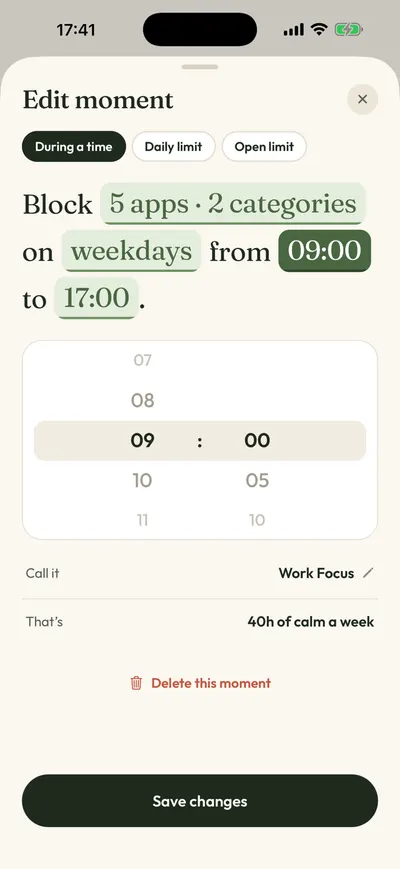
- Open the Moments tab. Tap a suggestion like Night Peace (every day, 10 PM to 7 AM) or tap New moment.
- Tap each word in the rule to change the apps, days and times, then tap Protect this moment.
- Keep your Screen Time website limits as they are. Remove any Time Allowance that now doubles a Calma rule, so you only see one block screen.
FAQ
Is Calma a Screen Time alternative or an add-on?
Both, depending on how you use it. Calma needs Screen Time access, because iOS only lets apps block other apps through it. But you can do all your app blocking in Calma and leave Screen Time for reports and websites.
Does Calma see what I do inside Instagram or TikTok?
No. iOS gives Calma opaque tokens for the apps you pick, not your activity inside them. Calma has no account, and your rules stay on your iPhone.
Is Screen Time better with a passcode?
It is stricter. In iOS 26, with a Screen Time passcode, Block at End of Limit and Block at Downtime stop the one-tap override. It works best when a partner or friend sets the code.
Does Calma work on iPad or Mac?
No. Calma is for iPhone. Screen Time covers iPad and Mac.
Should you use Calma or Screen Time?
- Use Screen Time if a daily limit already works for you, if you need website blocking, or if you want it free.
- Use Calma if you keep tapping Ignore Limit, if your problem is a specific time of day (bed, work, dinner), or if you want “3 opens a day” instead of a timer.
- Use both if you want Calma for apps and Screen Time for websites.
For a wider look, see our honest list of the best app blockers for iPhone, or how Calma’s app blocker works.
Tired of tapping Ignore Limit?
Calma blocks the apps you pick at the times you pick, with one calm button: Back to calm. Try it free for 3 days.

Sources
- Apple Support: Set schedules with Screen Time on iPhone (iOS 26), checked 2026-09-24
- Apple Support: Set Screen Time Schedules and Time Allowances (iOS 27), checked 2026-09-24
- Apple Support: Set up Screen Time for yourself on iPhone (iOS 27), checked 2026-09-24
- Apple Support: Create, change, or remove a Screen Time passcode, checked 2026-09-24
- Apple Support: Block apps, app downloads, websites, and purchases (iOS 26), checked 2026-09-24
- Apple Developer: Family Controls framework, checked 2026-09-24
- Tech Lockdown: the Ignore Limit options on the limit screen, checked 2026-09-24
- Calma on the App Store, checked 2026-09-24